
By default, when Ask AI proposes a change inside the app, such as the prompts you track or how often they are asked, a card waits for you to Approve it. See Ask AI. Auto-approve actions skips that card.
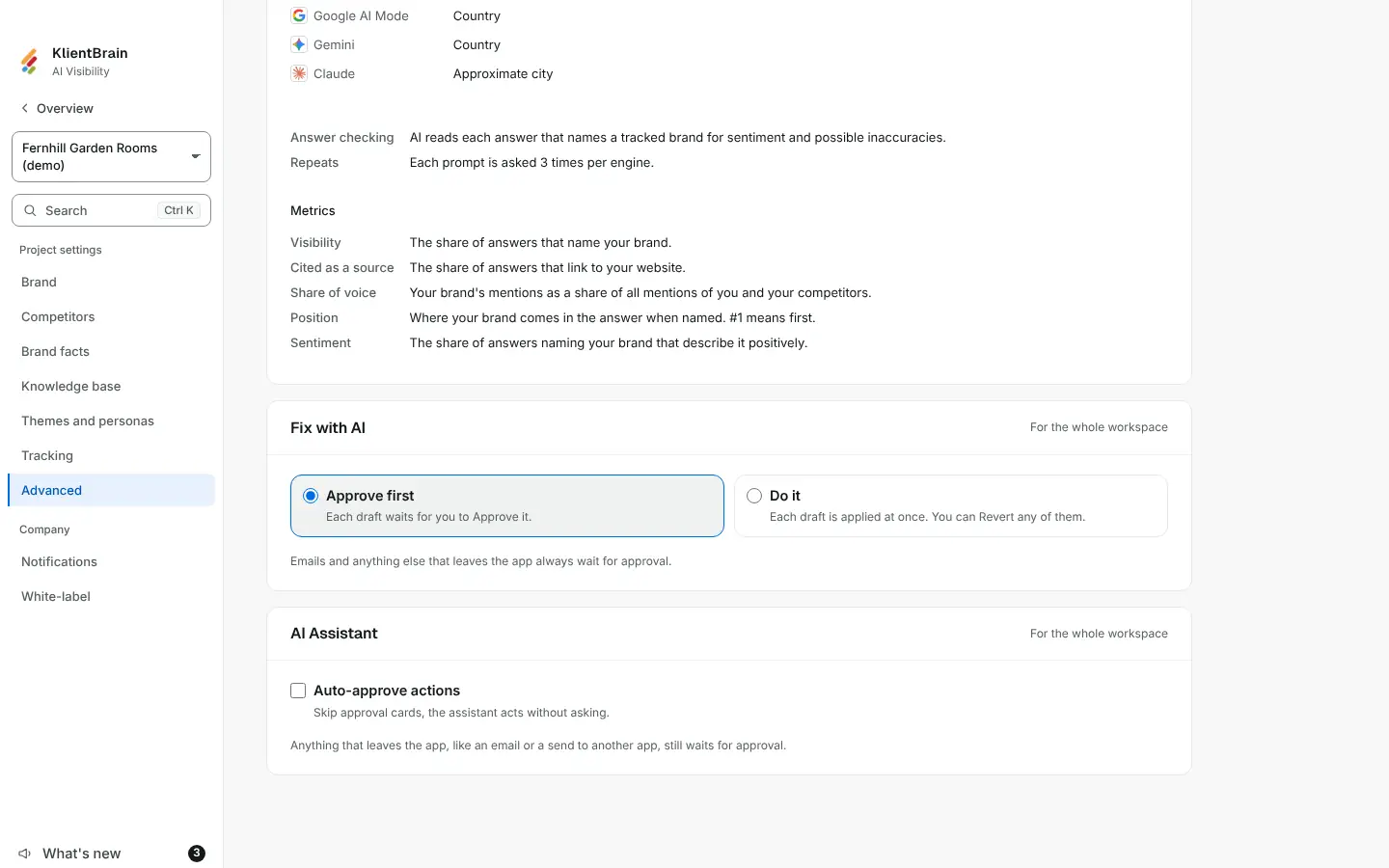
Turn it on
- Open Settings, then the Advanced tab.
- Find the AI Assistant card. It says For the whole workspace.
- Switch on Auto-approve actions. It saves at once and shows Saved.
Only Admins can change it. Everyone else sees the setting and the line "Only Admins can change this."
What changes
With it on, a change Ask AI proposes is applied at once. The card still appears in the chat as the record and reads Applied instead of Approved. The Ask AI panel also shows the badge Acts without asking.
What still waits for you
Anything that leaves the app, like an email or a send to another app, still waits for approval. Viewers and client logins are never offered a change, so nothing is applied for them.
If a change cannot be applied
If the app refuses the change, nothing is marked applied. The card keeps its Approve button and the refusal is added to the answer.
In the audit log
Turning the setting on or off is recorded as Changed whether the assistant acts without asking. Each change applied this way adds Applied a change from Ask AI without asking.