
A template is a ready-made set of prompts you can add in one go, instead of writing them one by one.
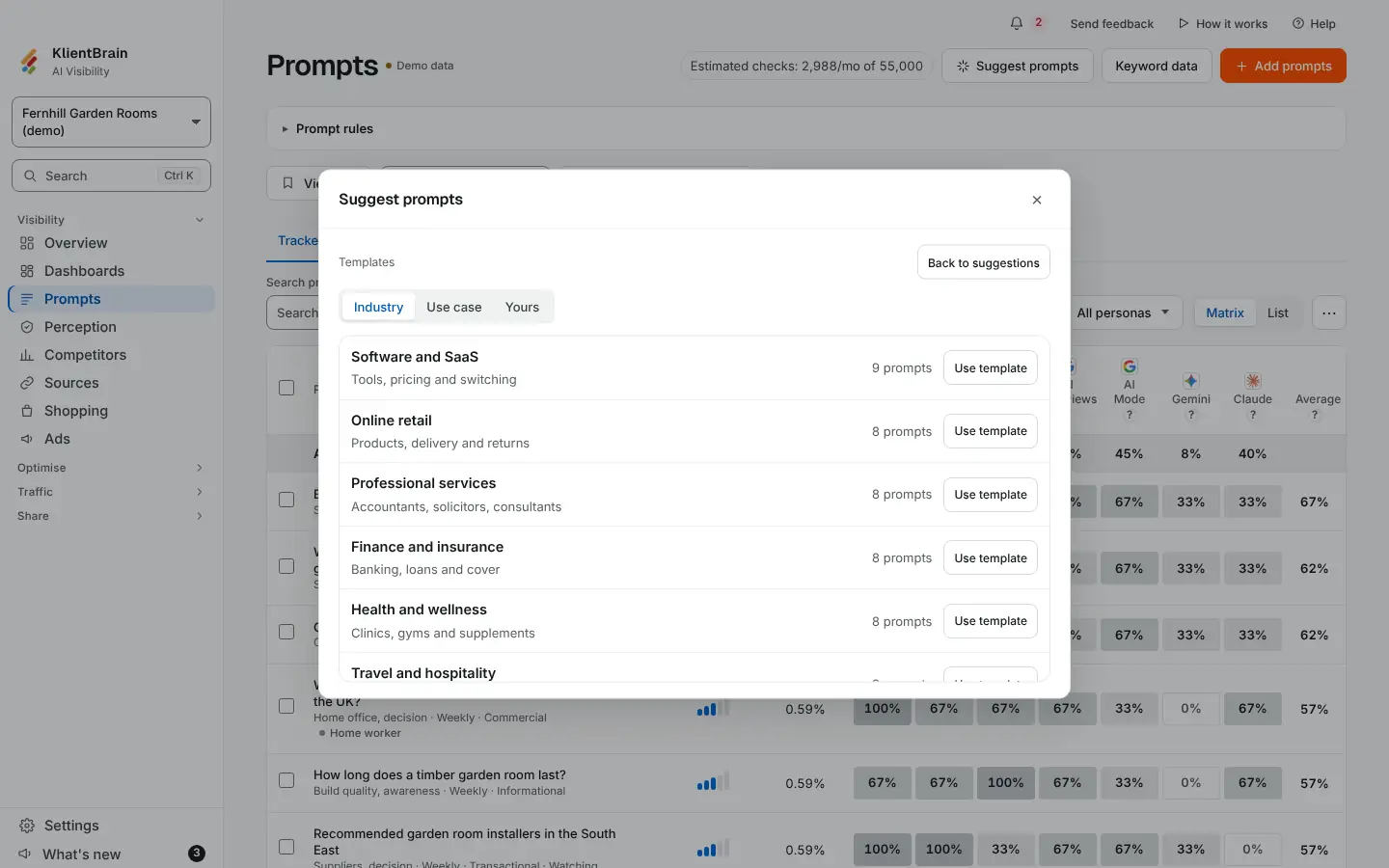
Use a template
- In Suggest prompts, choose Use a template. It is in the dialog when you set up a project and on the Prompts page.
- Pick a tab: Industry (11 sets), Use case (6 sets) or Yours (templates your workspace has saved).
- Choose Use template beside a set.
The set's prompts are added to the suggestion list, ticked, and any prompt the project already tracks is skipped. Nothing is saved until you confirm the list, as with any suggestion. Choose Back to suggestions to return.
Each ready-made set has 6 to 9 prompts. They are neutral: no brand, product or competitor name, and none from the brand stage.
Save your own template
- On Prompts, open the ⋯ menu and, under Add, choose Save as template.
- Enter a Template name, then choose Save template.
It saves the prompts the project is tracking. Prompts in the brand stage, and prompts that name your brand or an alias, are left out so the template works for another brand. The message after saving says how many were left out. Everyone in your workspace can use it, and nobody outside it can see it. Delete one from the Yours tab.
Limits
A workspace can hold 50 saved templates. A template has up to 100 prompts and a name of up to 60 characters.
For other ways to add prompts, see Find new prompts to track.