
Search jumps you to any page, project or prompt without clicking through the menu.
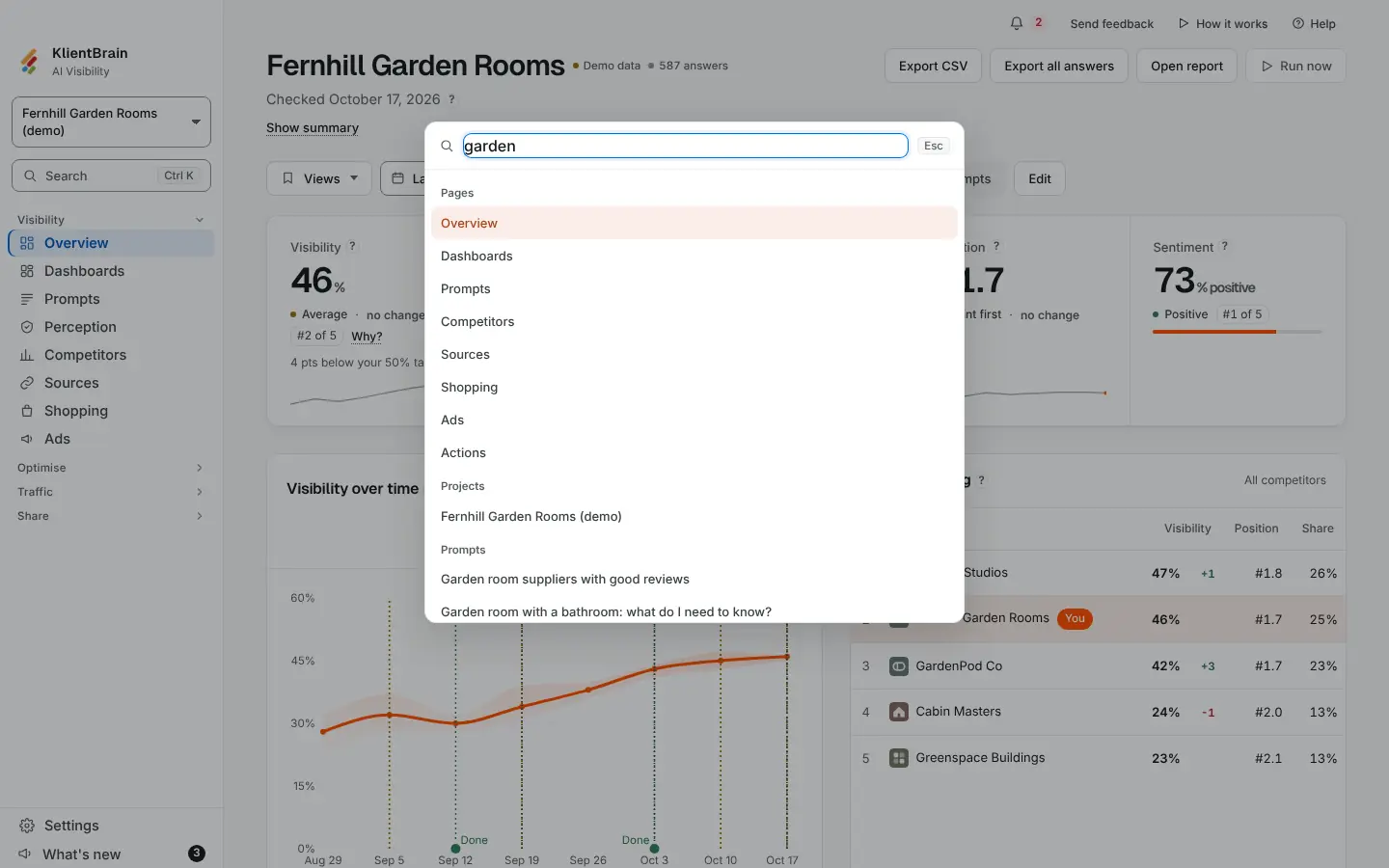
Open it
Press Ctrl K, or Cmd K on a Mac, anywhere in the app. Or choose Search at the top of the left menu, which shows the shortcut beside it.
A box opens with Find anything. Type, and the results appear in groups: Pages, Projects and Prompts. With nothing typed it lists pages and projects only.
Use it
- Press the Down and Up arrows to move through the results, Enter to go, and Esc to close. Focus goes back to where you were.
- Choose a result with the mouse or a tap.
- Typed words must all match. The best match comes first: a name that starts with your words, then a word that starts with them, then a name that contains them.
- Choosing a prompt opens Prompts already searched for it.
What it finds
- The pages your menu shows you. It never lists a page your menu hides, so a client login does not see Settings.
- All your projects, and New project (not for client logins or Viewers).
- The current project's tracked prompts. These load the first time you open Search on that project.
- Help.
It finds places only. It does not run checks, create prompts or search help articles by title. For the help centre, use the search box there.