
Write with AI turns a content brief into a first draft of a page. The draft uses only the brief and your brand facts. It stays in the app: nothing is published, sent or posted.
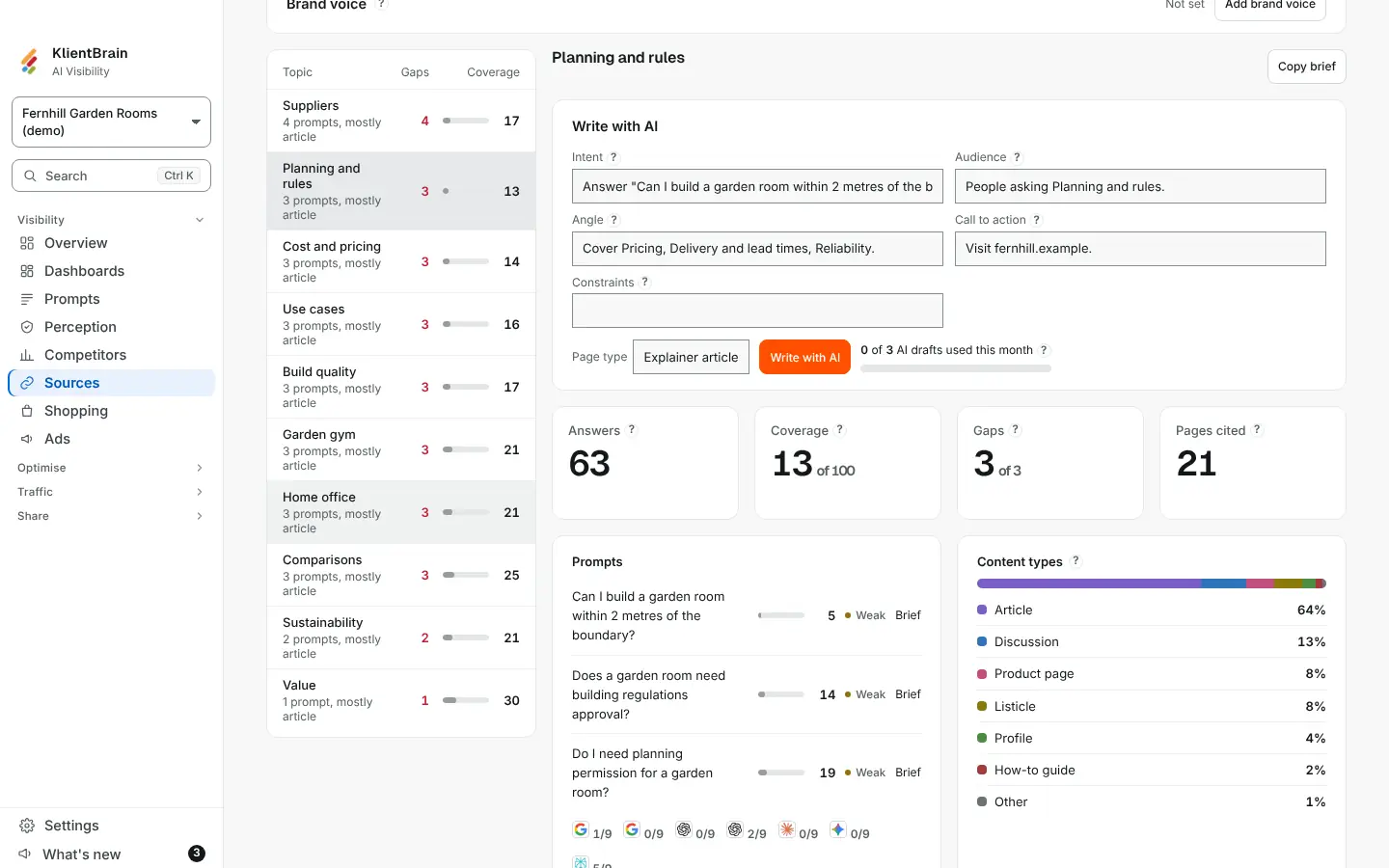
How to use it
- Open Sources and choose the Content briefs tab.
- Choose a topic on the left. To write for one prompt, choose Brief beside it.
- In the Write with AI section, choose a Page type: How-to guide, Comparison, List article, FAQ page or Explainer article.
- Choose Write with AI. After the first draft the button reads Write again.
Beside the button, About N drafts left this month shows what is left of your Ask AI allowance. Drafts share it with Ask AI. When it runs out, the section says Limit reached and the date it resets.
The draft and the optimiser
The draft opens in a text box with an Optimiser beside it. The optimiser shows a score out of 100 and a few short rows, and updates as you type. A row that is not full says what to add. Hover a row for the same line. See Content review score for the rows.
- Save keeps your edits.
- Copy copies the text.
- Discard removes the draft.
Where the model had no fact, figure, quote or link to use, it writes a placeholder in square brackets, such as [add your price]. The optimiser counts them (N placeholders in square brackets to fill in). Replace each one before you use the page.
What it uses
The model is given the brief's questions, the pages the engines cite and the true facts you keep on your brand. It is told not to invent figures, quotes or links. You still need to read the draft. To check or add facts, see Content briefs and brand facts and Accuracy and brand facts.
Who can use it
People who can edit the project. Viewers and client logins do not see it. Each project keeps up to 50 drafts.
To set the voice a draft is written in, see Brand voice and default instructions. To make edits with suggestions and comments, see Document editor.