
Set your voice once and the assistant writes in it every time, instead of you repeating it on each draft.
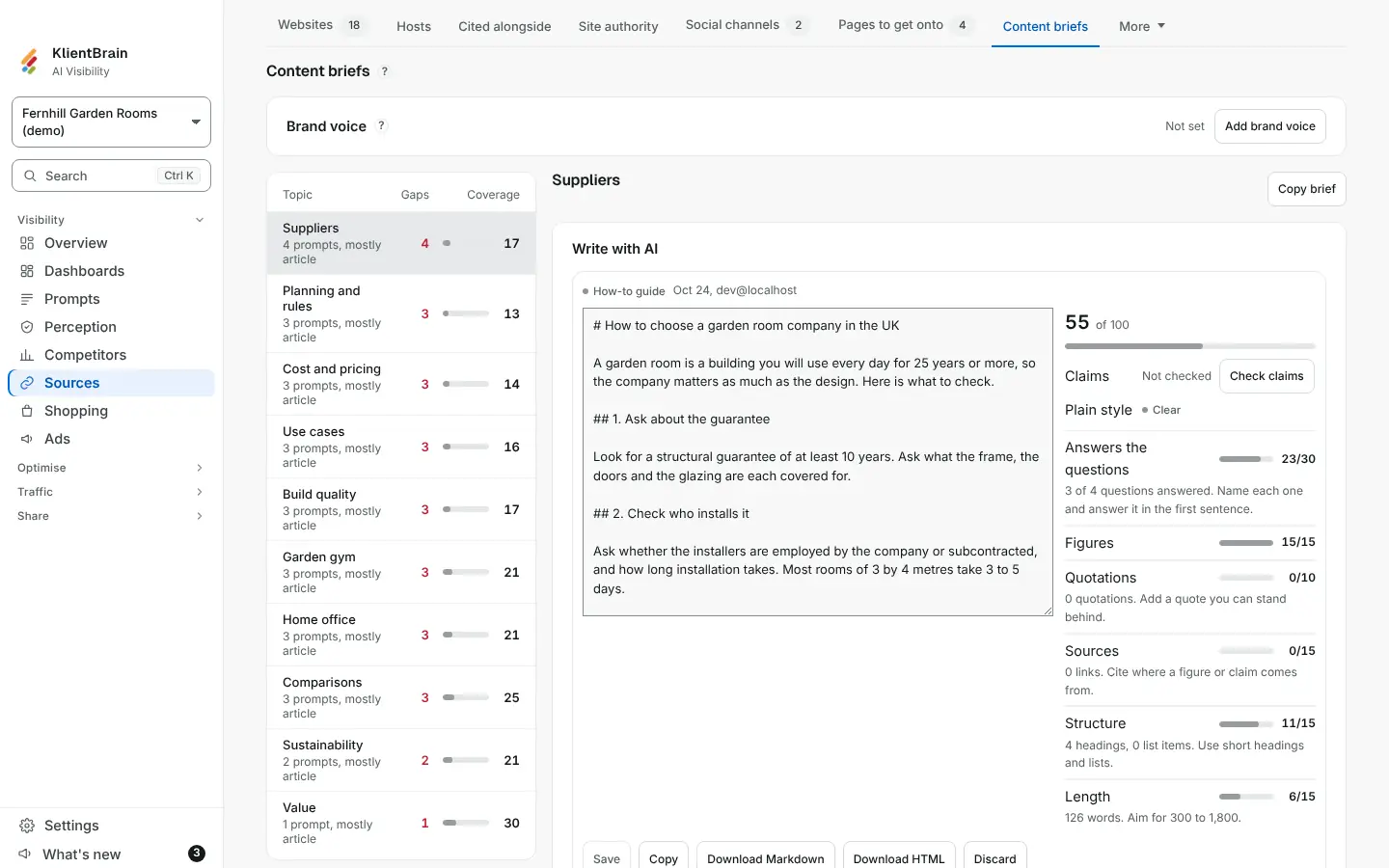
Set it up
- Open Sources and choose the Content briefs tab.
- In the Brand voice card, choose Add brand voice. If one is set, the card shows it in one line with an Edit button.
- Fill in any of the three boxes:
- Brand voice and tone: how your brand sounds, for example warm, plain and direct.
- Writing rules: one rule a line, for example "Use British spelling".
- Default instructions: what to do in every draft, for example "End with one clear next step".
- Choose Save. Clear a box and save to remove it.
The ? beside Brand voice and beside each box repeats these examples.
What it changes
From then on, every page Write with AI drafts and every Fix with AI draft carries your voice. It sets wording, tone and layout only. Drafts still use just your brand facts: the voice cannot add a fact, figure, quote or link. Saving the voice does not call the assistant and costs nothing.
Limits
- Tone: 300 characters. Writing rules: up to 20 lines, each up to 200 characters, 1,200 in all. Default instructions: 800 characters. Text that is too long is refused with a message, never cut.
- The voice belongs to one project, so each client or brand can have its own.
- Only people who can edit the project see the card. Viewers and client logins do not.
See Write with AI.