
When a question has a gap, meaning the engines do not cite your site for it, you can have a landing page drafted for it. You get a headline, a short subheading, a button, up to eight sections and up to eight questions with answers.
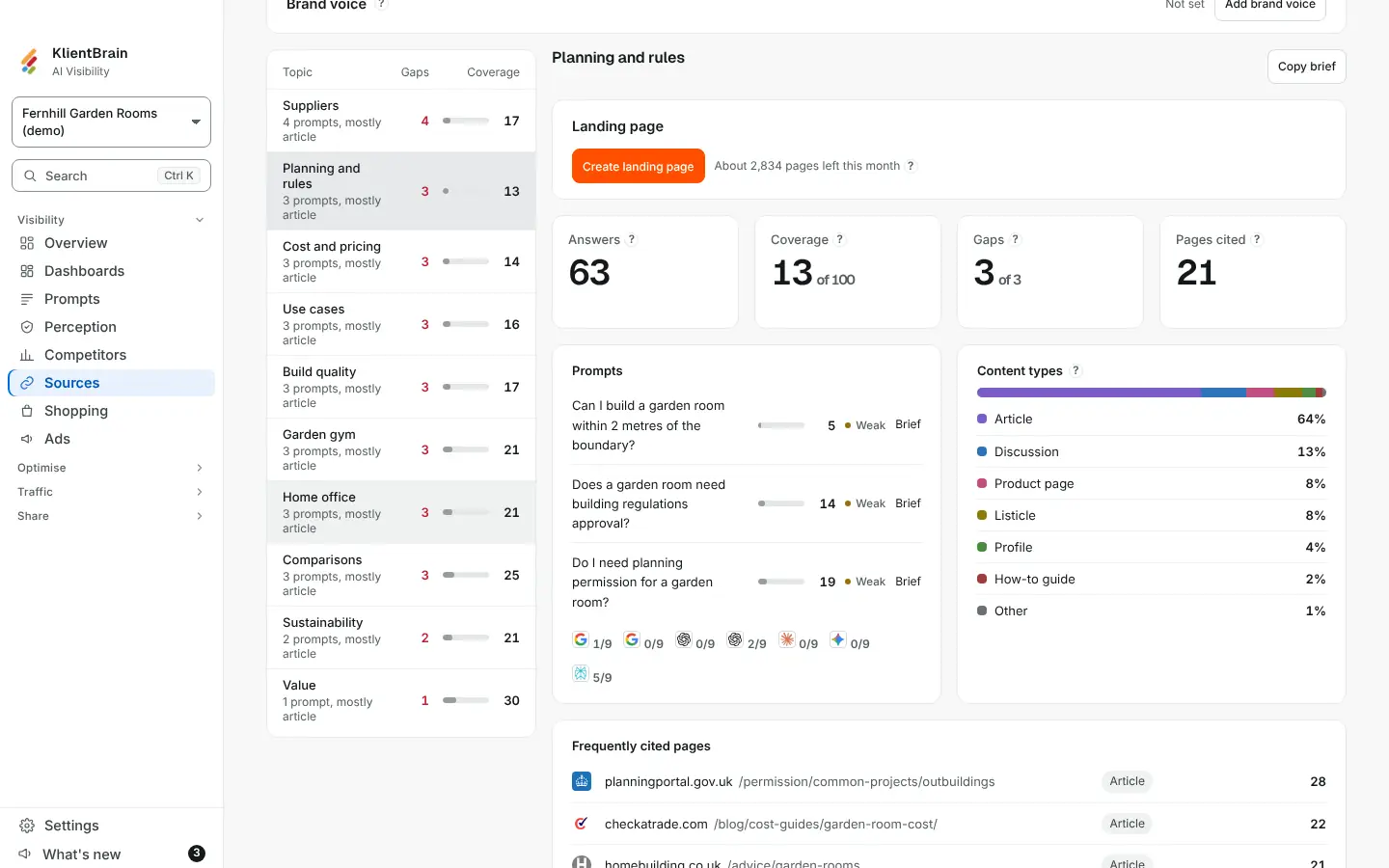
How to use it
- Open Sources and choose the Content briefs tab.
- Choose the topic, or choose Brief beside one prompt.
- In the Landing page section, choose Create landing page.
About N pages left this month shows what is left of your Ask AI allowance, which landing pages share. When it runs out the section says Limit reached and when it resets.
What you get
The page appears as its headline with a count such as 3 to fill in. Where the assistant had no fact, figure, quote or source from your brand facts, it wrote a placeholder in square brackets. Fill those in before you use the page.
- Preview shows the subheading, the sections and the questions.
- Edit opens a field for each part: Headline, Subheading, Button text, Page title and Search description, then each section's Heading and Text, and each Question and Answer. Use Add a section, Add a question, Remove section and Remove question. Choose Save, or Cancel.
- Download HTML gives one file.
- Discard removes the page.
The downloaded file
One self-contained HTML file with its own small stylesheet. It has no script and makes no outside request. The questions are marked up as FAQ data. The button's address is left as #cta-link for you to replace with the real one. The page is a starting point for a developer or your CMS, not a finished design.
What it uses
The brief's questions, the headings of the pages engines cite, the themes and searches, and your brand facts. It is told not to invent anything else. Read every page before it goes live. See Write with AI for how drafts and the allowance work.
People who can edit the project can create and edit pages. Viewers can read and download. Client logins do not see it.