
A new workspace starts with a demo project, so you can see what each screen does before you add your own brand.
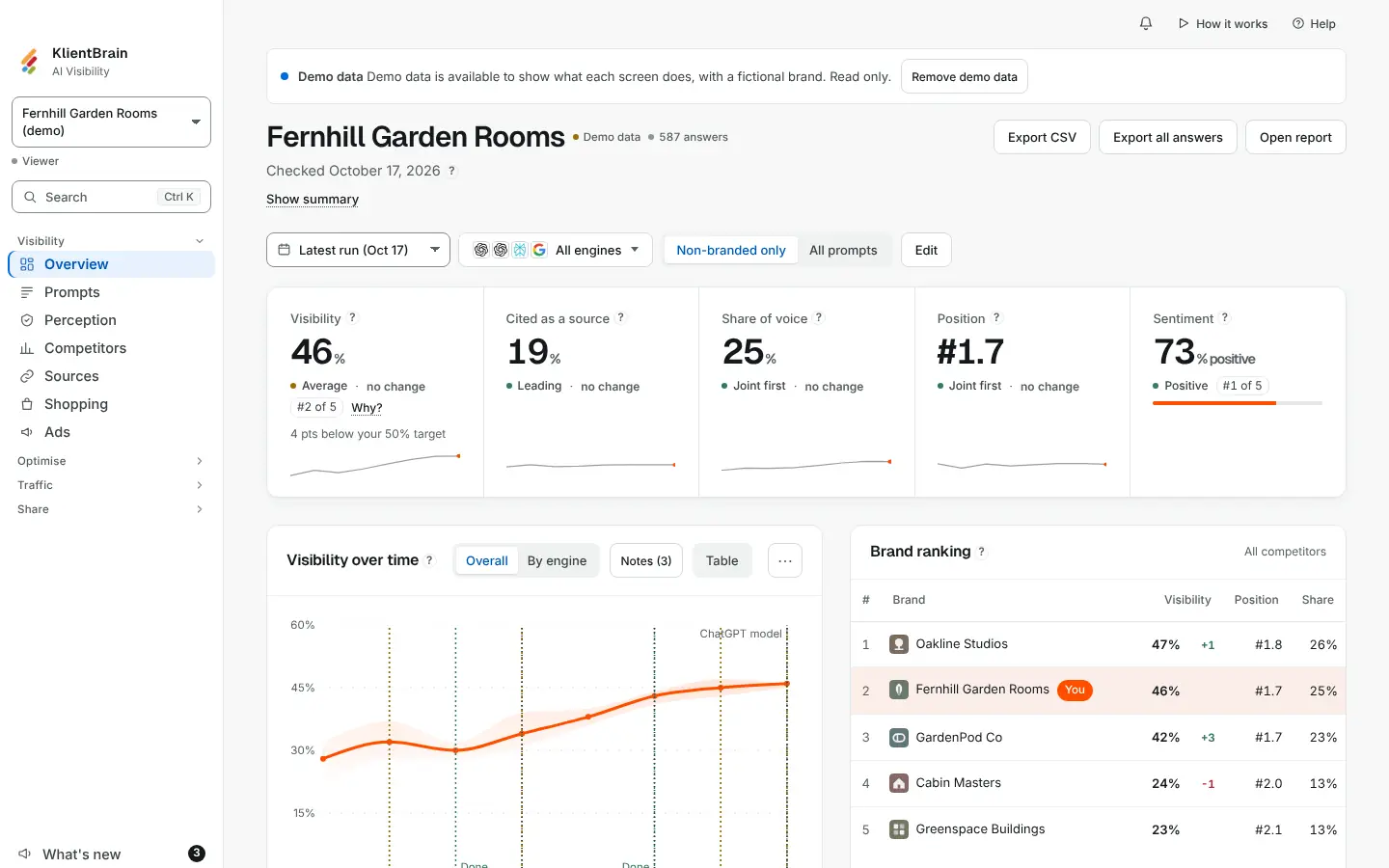
What you see
While your workspace has no project of its own, the demo project is in your Projects list. On each of its pages a banner reads Demo data and Demo data is available to show what each screen does, with a fictional brand. Read only.
The brand is fictional and the figures are made up. Nothing in the demo is a real check, and no check is run.
It is read only
You can look at every screen the demo has. You cannot change it, add to it or run checks on it. Pages that change settings are not available on it. Viewers see the banner without the button.
Remove it, or bring it back
- On a demo page, choose Remove demo data. The demo disappears from your Projects list.
- Under the project cards, choose Show demo data to bring it back. This link appears only after you have removed it.
Once you have chosen, your choice stands. The demo does not count toward your project limit.
Not for client logins
Client logins do not see the demo. To add your own brand, see Getting started.