
The Tasks card under the Actions list holds your own work. Three things help you keep it in order.
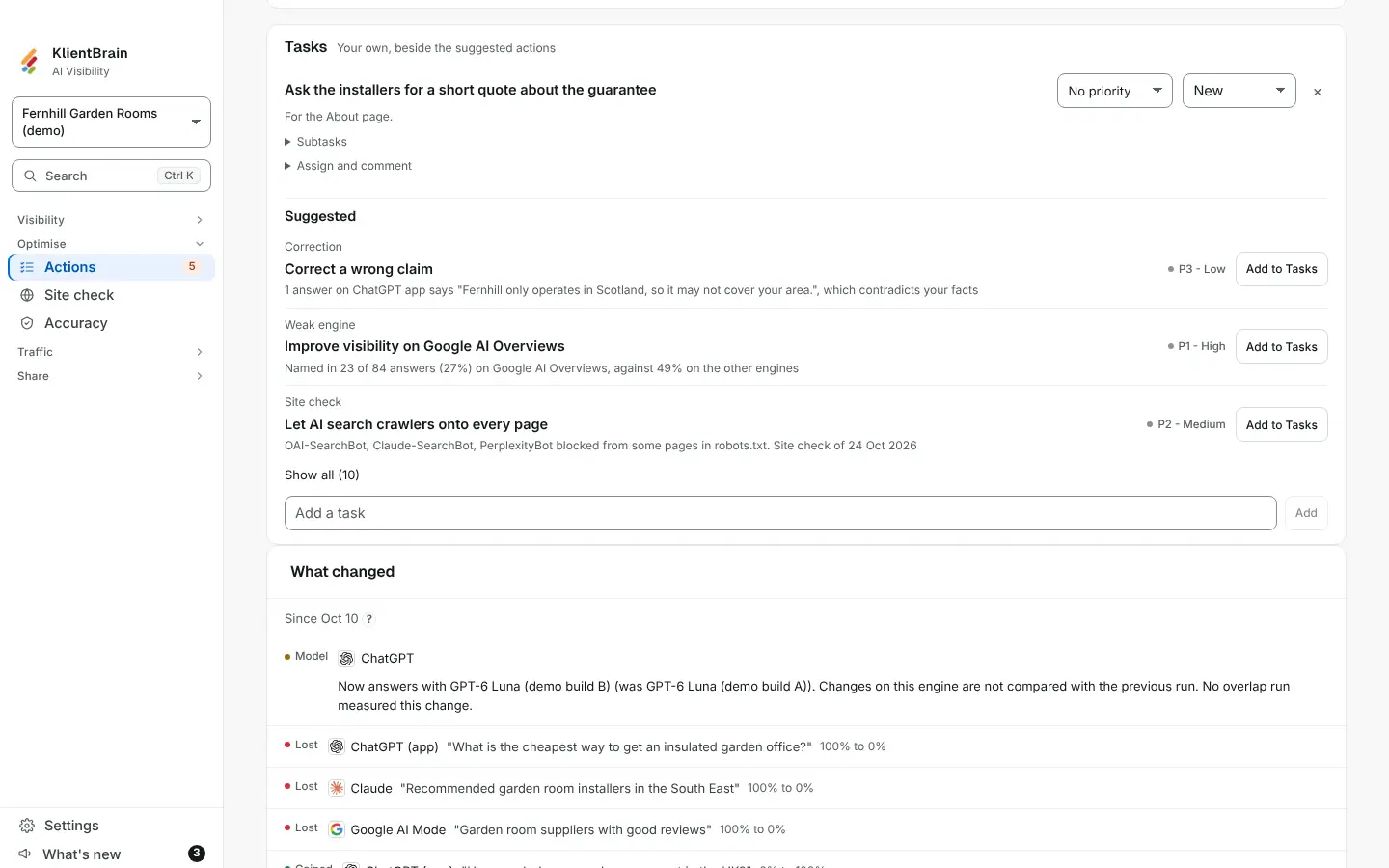
Priority
Each task has a Priority menu: No priority, P0 - Critical, P1 - High, P2 - Medium or P3 - Low. Tasks are listed most urgent first within their status tab.
Subtasks
Under a task, Subtasks opens a short checklist. Type in Add a subtask and press Enter, tick a subtask when it is done, or delete it with the cross. A task can have up to 20. When a task has subtasks, a count such as "2 of 5" sits beside its title.
Suggested tasks
When the week has top opportunities that are not tasks yet, a Suggested fold appears under the tasks, shut until you open it. It shows three at a time; choose Show all to see the rest. Each suggestion shows its kind, a title and why it matters, and a priority starting at P1, P2 or P3 from its impact, never P0. Choose Add to Tasks to make it a task.
Good to know
- People who can only view the project see the priority and subtasks but cannot change them.
- A task uses the same four statuses as an action: New, In progress, Done and Dismissed.
- To assign tasks and comment, see Work on actions together.