
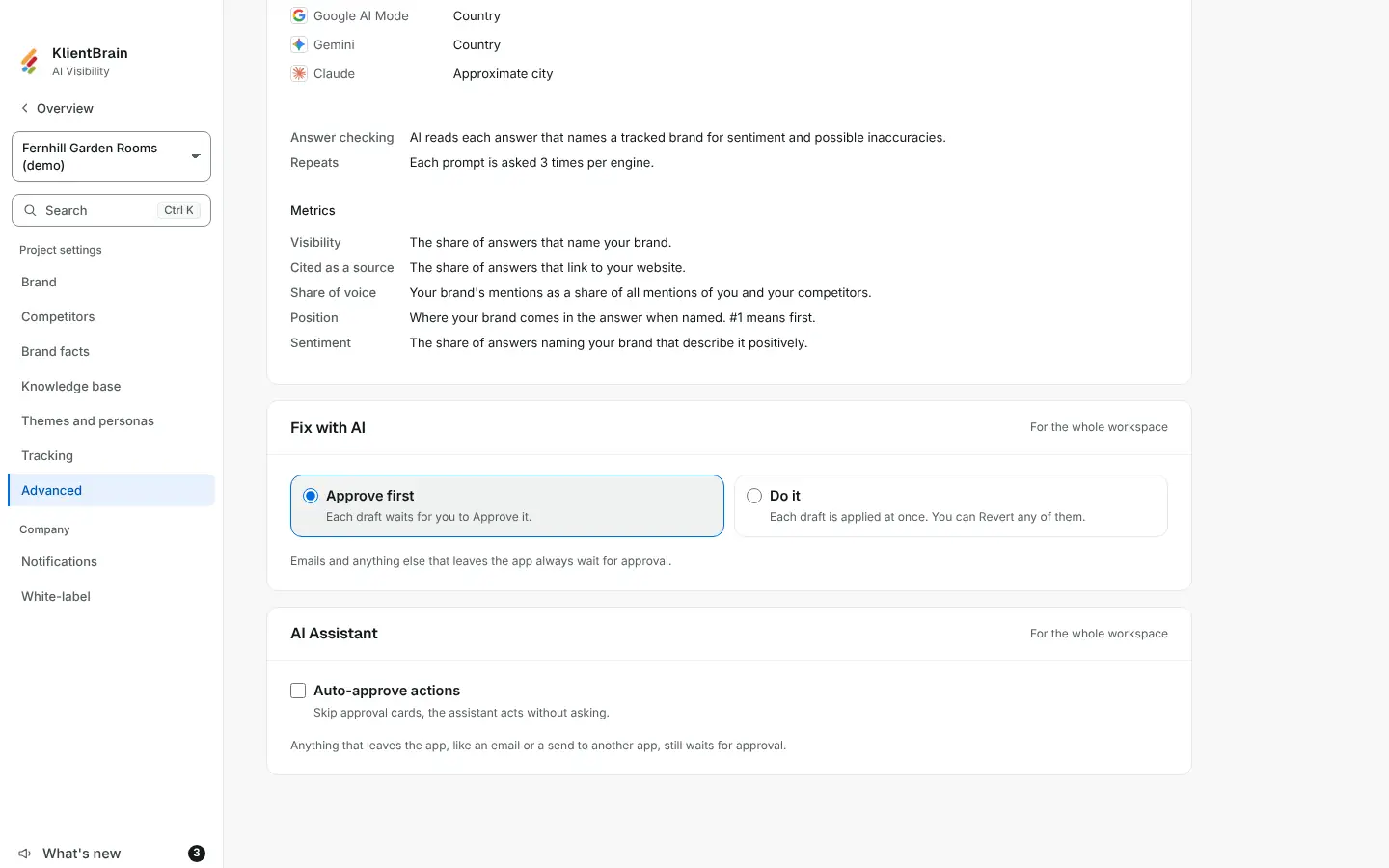
Fix with AI can work in two ways. See Fix with AI for how drafts are made.
- Approve first: each draft waits for you to Approve it. This is the default.
- Do it: each draft is applied at once. You can Revert any of them.
Set the workspace default
- Open Settings, then the Advanced tab.
- Find the Fix with AI card. It says For the whole workspace.
- Choose Approve first or Do it. It saves at once and shows Saved.
Only Admins can change it. Everyone else sees the choice and the line "Only Admins can change this."
Choose for one fix
Under Options, beside the draft kind, there is a small Approve first | Do it choice. It starts on the workspace default. Anyone who can draft a fix can pick the other one for that fix.
Undo
A fix applied by Do it carries an Applied by Do it tag. Open Earlier drafts and choose Revert to put it back as it was. Reverting clears the tag, so a later Approve is a person's own.
What Do it never does
- It never sends anything. Emails and anything else that leaves the app always wait for approval. An outreach draft is never applied by Do it.
- It applies only where Revert is available, so every fix it applies can be undone. Otherwise the draft waits for Approve as usual.
In the audit log
Changing the default is recorded as Changed how fixes are applied. Each fix applied at once adds Applied a fix draft with Do it.